
Set up mesh Wi-Fi at home
Technical Terrence · for the office and home
One Wi-Fi router in a convenient corner often leaves a weak room, a dead hallway, or a second floor that barely holds a video call. A mesh system uses two or more units that work as one network: the same name, the same password, and (when it’s working well) a phone that stays online as you walk through the house.
This guide is for a home or apartment. It compares three honest ways to get there: a complete matching mesh kit, routers that share a standard called EasyMesh, and ordinary store-bought routers linked together. The third path is usually not true mesh. It can still work if you set the extra units up as access points, preferably with a wired connection back to the main router, and you avoid creating a second network by accident.
How a simple home path fits together — modem and router (or a combo gateway), then Wi-Fi, then an optional plug-and-play switch — is in From the demarc to your desk. If the whole network is already down, start with My network is down.
What you need
| Item | What it’s for |
|---|---|
| A main unit | The first router or mesh unit, connected to your modem or to a LAN port on the provider’s gateway. |
| One or more extra units | Kit points, EasyMesh agents, or extra routers. How they join the first unit is the whole point of this guide. |
| The maker’s app, or a laptop | Kits are almost always set up in an app. EasyMesh and store routers may use an app or a browser page. |
| Short Ethernet cables | One from the modem to the main unit. Extra cables if you can give the other units a wired backhaul. |
| A phone you can walk around with | For a coverage walk after setup. |
You do not need a rack, a patch panel, or a managed switch to do this. If you later want more wired ports for a TV or a console, a small unmanaged switch is plug and play; see Install a switch.
Three ways to cover the house
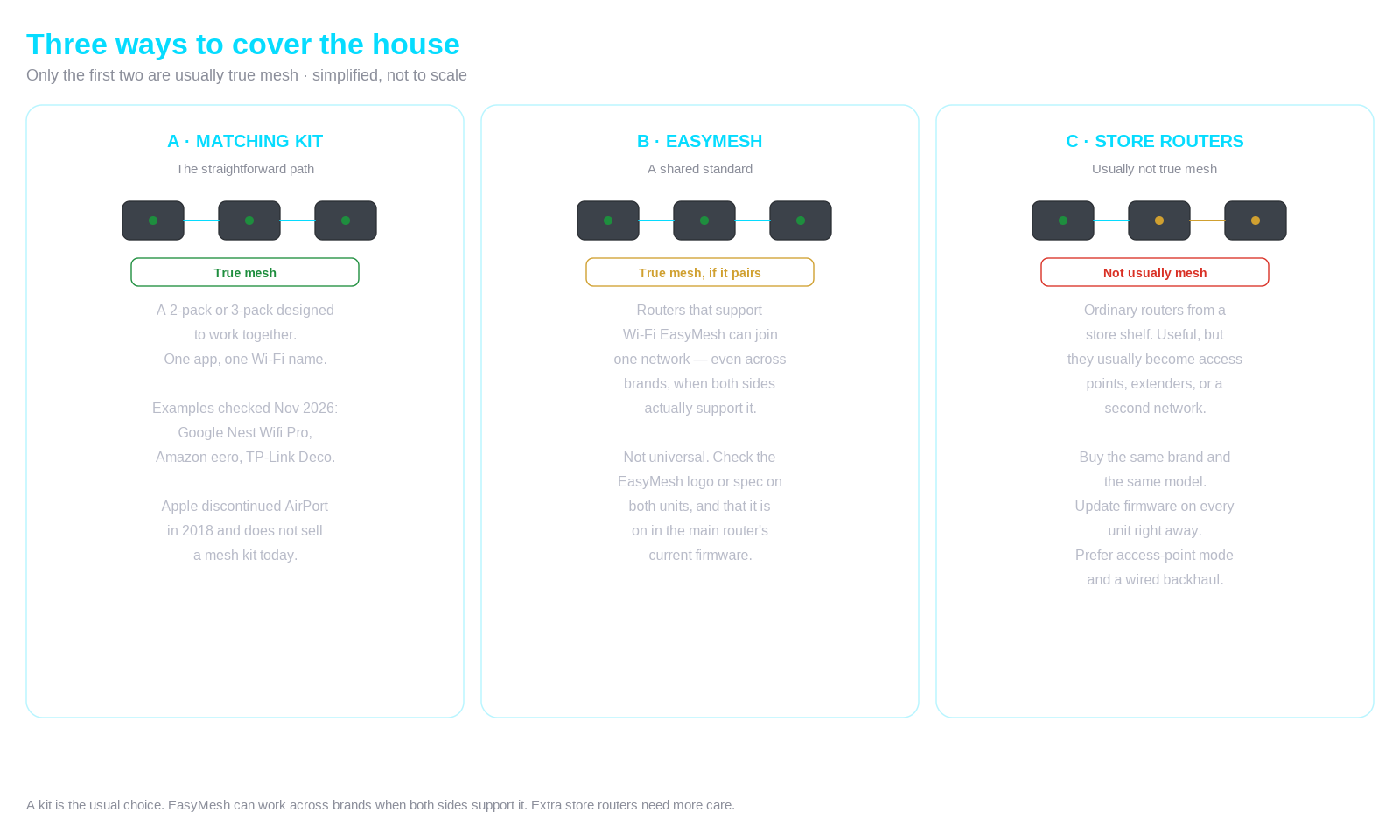
A. A complete matching mesh kit
This is the straightforward path for most homes. You buy a set of units that are designed to work together, usually sold as a 2-pack or 3-pack, and you add more of the same system later if you need them.
Current examples, checked in November 2026:
- Google Nest Wifi Pro, set up in the Google Home app. Google’s help pages say Nest Wifi Pro is not compatible with older Nest Wifi or Google Wifi units in the same mesh.
- Amazon eero, including current models such as eero 7, eero Pro 7, and eero Max 7, set up in the eero app. Units in the eero family are generally meant to mix with each other; a few older add-on models have no Ethernet port and can only join wirelessly.
- TP-Link Deco, a whole family of mesh units set up in the Deco app. Different Deco models can usually share one Deco network. Deco is its own system. TP-Link’s own comparison says Deco does not form one mesh with TP-Link EasyMesh (Archer) products.
Apple used to sell AirPort routers (AirPort Express, AirPort Extreme, and AirPort Time Capsule). Apple discontinued that line in 2018, and it does not sell a mesh kit today. Apple’s own support page, updated September 14, 2026, says all AirPort hardware and software products are now discontinued. If you’re replacing an AirPort, pick one of the current kits above, or another current mesh system, rather than hunting for leftover AirPort hardware.
A matching kit gives you one app, one Wi-Fi name, and units that expect to talk to each other. Follow the box: one unit goes by the modem, the others go around the house, and the app walks you through adding them.
Kits still have limits. Units from one maker’s older generation may not join the new one (Nest Wifi Pro is the clear example). Coverage numbers on the box are estimates. Walls, floors, and placement matter more than the square-footage claim.
B. Compatible routers that share EasyMesh
Wi-Fi EasyMesh is a Wi-Fi Alliance standard for several access points that work as one network, including units from different brands, as long as they actually support it.
This is not universal. “Mesh” on a box is not the same as EasyMesh. Many complete kits — including Nest, eero, and Deco — use their own mesh and will not join a mixed EasyMesh network.
If you want this path, check all of the following before you buy:
- The EasyMesh name or logo on each unit, or a clear “Wi-Fi EasyMesh” / “Wi-Fi CERTIFIED EasyMesh” line on the data sheet.
- That both the main router and the extra unit support it — not just one of them.
- That the feature is turned on in the main router’s current firmware. Some models only got EasyMesh in a later software update. Update that firmware first, then add the second unit.
- The official Wi-Fi Alliance product finder if you want to confirm certification, plus the maker’s own EasyMesh list (for example, a vendor page of EasyMesh routers and extenders).
Even then, treat the first add-on as a test. Setup is usually: update and configure the main router, turn EasyMesh on, then add the second unit as an agent or satellite with the maker’s app or wizard. If the two brands will not pair, you still have useful routers, but you do not have a mesh yet. Don’t assume two EasyMesh logos guarantee every feature (wired backhaul, guest Wi-Fi, app controls) will match.
C. Buying multiple regular store routers and linking them
This is the Walmart-style path: two or three ordinary routers, often bought because they’re on the shelf and cheaper than a kit. It can extend coverage. It is usually not true mesh.
What you usually get instead:
- Access points. The extra router stops being a second router. It just adds Wi-Fi (and maybe a few ports) on the same network. This is the right way to do it.
- Extenders or repeaters. The extra unit listens to the main Wi-Fi and rebroadcasts it. Easy to set up, often slower, because the same radio may be talking both to the main router and to your devices. Fine as a temporary fix, not the best long-term plan.
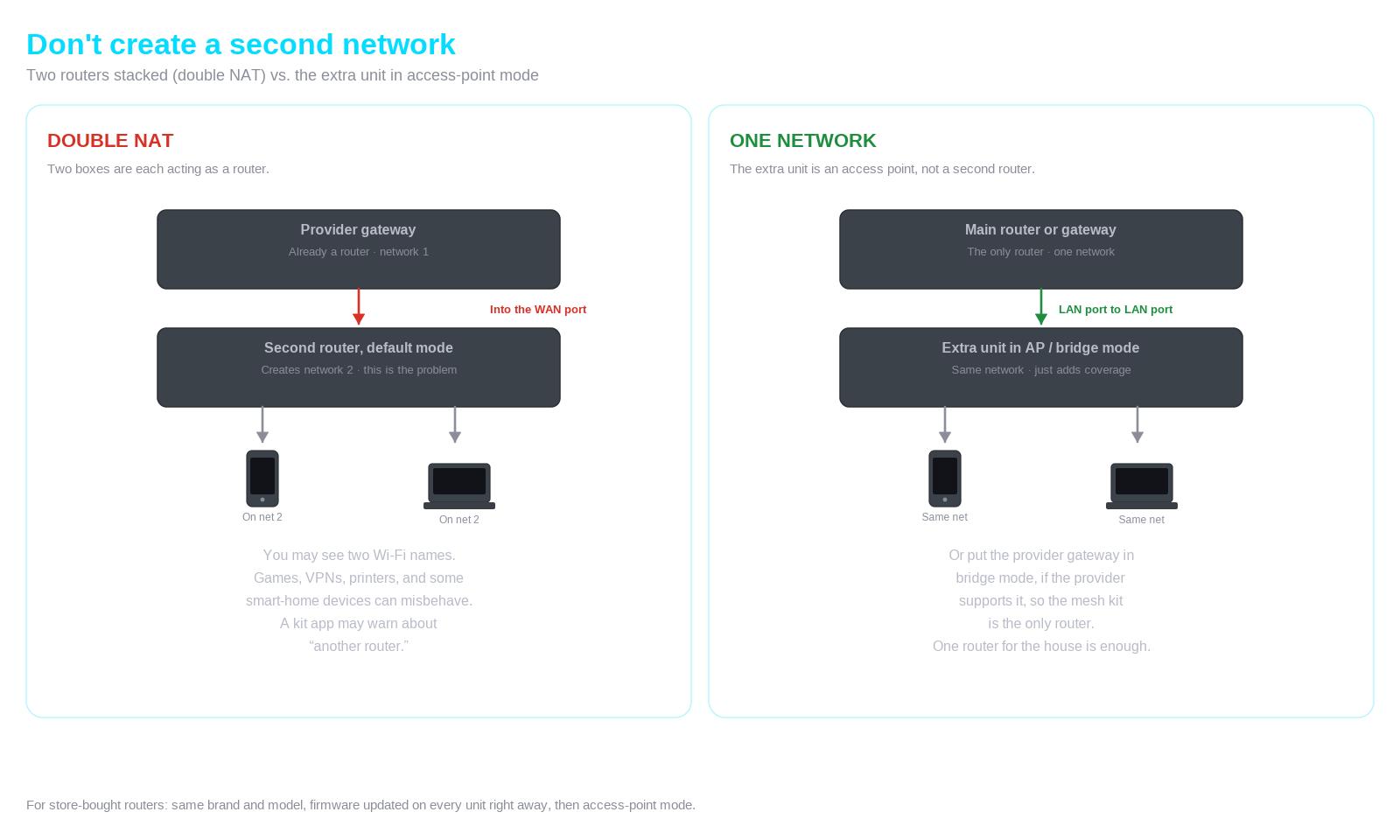
- A second network (double NAT). You plug the extra router’s internet (WAN) port into the first router and leave it in its default router mode. You now have two networks stacked on each other. Phones may hop between two names, or sit on the wrong one. Games, VPNs, printers, and some smart-home devices can misbehave. See Avoid a second network.
Buy the same brand and the same model for every unit. Matching hardware is easier to set up: the menus look the same, the same access-point mode is in the same place, and you’re not mixing firmware quirks. Then update the firmware on every unit right away, as soon as that unit is on and you can log in — before you lean on it, and before you add the next one.
How to do this path right:
- Set up the main router first, next to the modem. Update its firmware immediately. Set the Wi-Fi name and password you want.
- For each extra unit, update its firmware first, then put it in access point or bridge mode if it has that switch or setting. If it doesn’t, turn off its DHCP server so only the main router hands out addresses.
- Prefer a wired cable from a LAN port on the main router (or from a small switch on that network) to a LAN port on the extra unit. Don’t use the extra unit’s internet/WAN port unless the maker’s access-point steps say to.
- Give the extra unit a simple address on the main network so you can find it later, and write that down.
- Same Wi-Fi name and password on every unit is convenient: your devices see one network. The tradeoff is that a phone may “stick” to a weak unit instead of moving to a stronger one, because ordinary routers don’t coordinate roaming the way a mesh kit does. Different names (for example, “Home” and “Home-Upstairs”) give you more control and less seamless walking-around. Either choice is valid; don’t expect kit-style roaming from this path.
If a cheap router only offers “extender” or “repeater” mode and you have no spare cable run, you can use that mode, but try a wired access point first if there’s any way to get a cable there.
For network engineers: “True mesh” here means a coordinated multi-AP network (a kit’s own protocol, or EasyMesh controller plus agents) with some form of client steering. AP-mode routers with a shared SSID are a roaming domain only in the loose sense; 802.11k/v/r is usually absent. Double NAT is two layers of NAPT; the usual fix is bridge mode on the ISP gateway or AP mode on the second box, not port-forward gymnastics on both.
Wired vs wireless backhaul
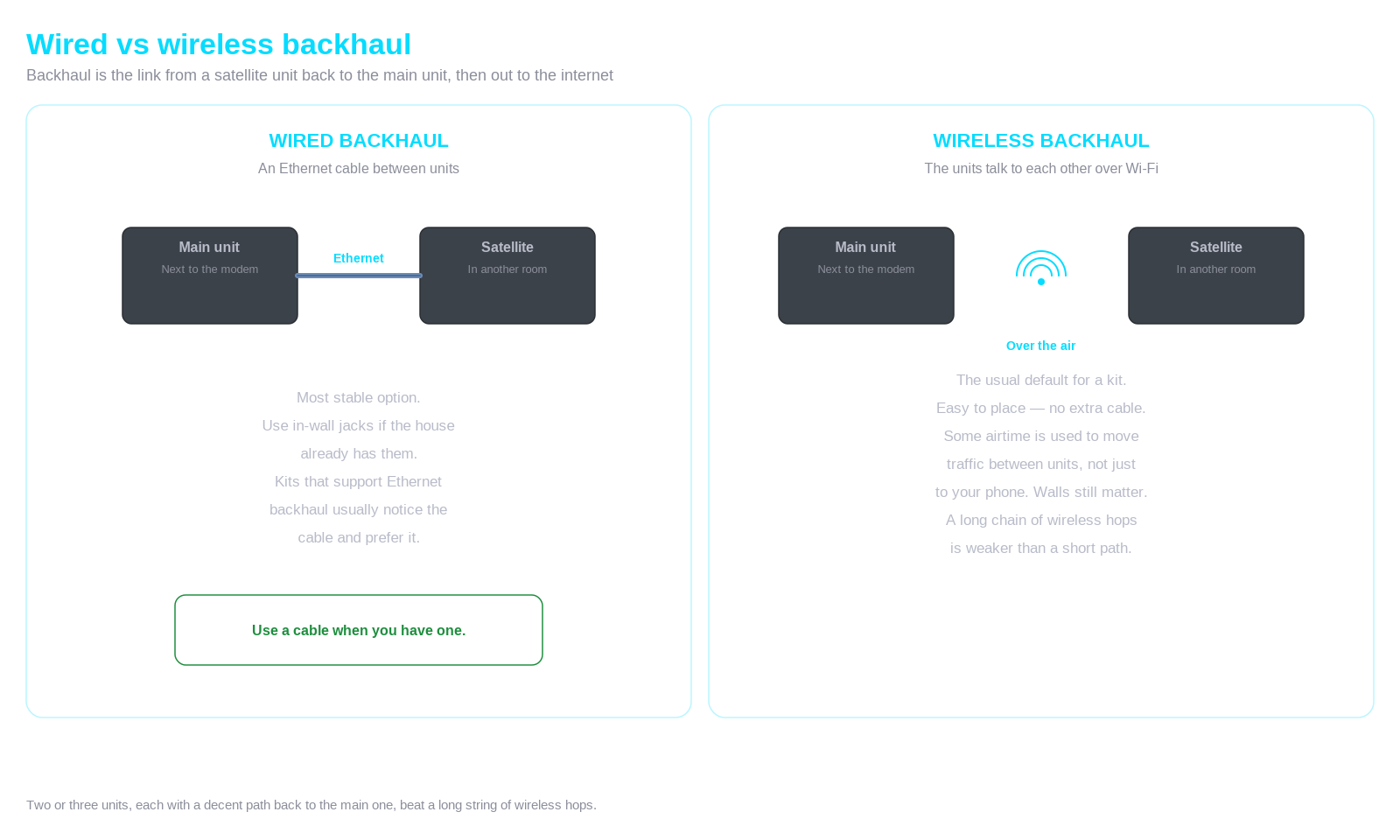
Backhaul is the link that carries traffic from a satellite unit back to the main unit, and then out to the internet.
- Wired backhaul uses an Ethernet cable between units (or through a switch, or through in-wall jacks that already run to a central spot). It’s the most stable option. If the house already has Ethernet, use it. Mesh kits that support Ethernet backhaul will usually notice the cable and prefer it.
- Wireless backhaul is the default for most kits: the extra units talk to the main unit over Wi-Fi. That’s why these systems are easy to place. The cost is that some of the airtime is used to move traffic between units, not just to your phone. A tri-band kit may keep a dedicated band for that link; a dual-band kit shares the same radios. You don’t have to pick a band by hand — just know that walls still matter, and that a cable, if you have one, is better.
Don’t daisy-chain a long string of wireless hops if you can avoid it. Two or three units, each with a decent path back to the main one, beat five units all repeating through each other.
Where to put the units
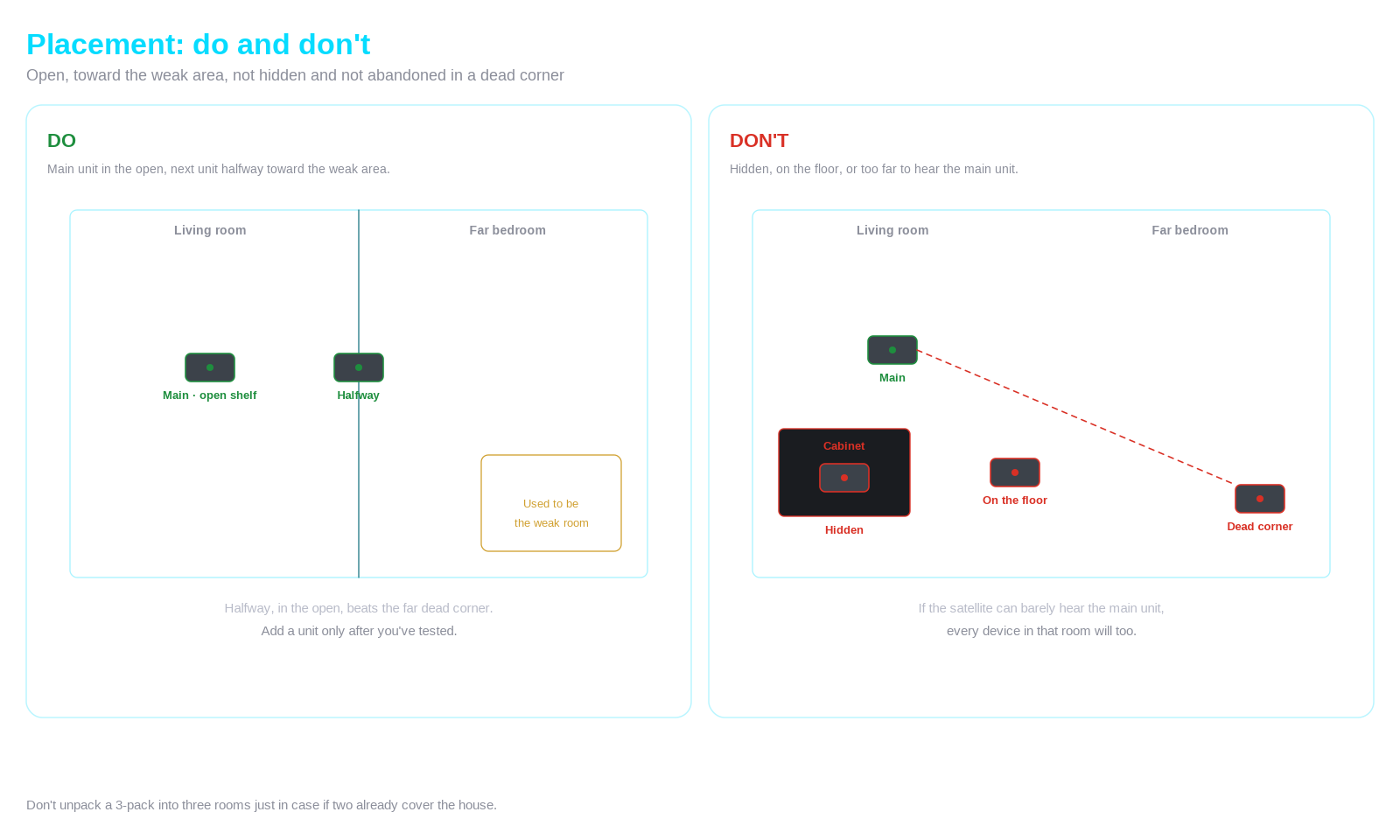
Placement does more for coverage than buying one more unit and hiding it badly.
Do:
- Put the main unit near the modem, in the open, up off the floor — a shelf or a high table, not the carpet.
- Put the next unit toward the weak area, but not all the way in the dead corner. Halfway, with a wall or two in between, is a better starting point than the far end of the house.
- Keep units in the open: a bookshelf edge, a hallway shelf, a central upstairs landing.
- Add a unit only after you’ve tested. Don’t unpack a 3-pack into three rooms “just in case” if two already cover the house.
Don’t:
- Hide a unit in a cabinet, a metal rack, a media console, or behind a TV.
- Set one on the floor, in a closet, or directly next to a microwave, a fridge, or a fish tank.
- Stack every unit in the same room as the modem.
- Push a satellite into the weakest corner and hope it can still hear the main unit. If the satellite has a weak uplink, every device in that room will too.
Set it up through the app
Makers use different apps and screens, so this is the job, not a tour of one menu. A typical kit goes like this:
- Unbox and inventory. Know which unit is meant to be first (sometimes labeled “router” or just “1”).
- Connect the first unit to the modem. Use a short Ethernet cable from the modem (or from a LAN port on the provider’s gateway) to the port the kit calls internet or WAN. Power the unit on and wait until its light settles, per the card in the box.
- Open the official app, create or sign in to an account if the maker requires one, and follow the prompts. Name the network and set a strong password. Don’t leave a printed default.
- Update firmware when the app offers it, before you add more units.
- Place and power the next unit, then add it in the app. Wait until the app says it’s online before you move it again.
- If you’re replacing the provider’s Wi-Fi, turn the gateway’s wireless off, or put the gateway in bridge mode, following both the provider’s and the kit’s steps. Leaving both running often gives you two overlapping networks, or double NAT.
- Walk the house and test.
For EasyMesh and for store routers, the same idea applies, just with a browser page or a “repeat / access point / EasyMesh” wizard instead of a kit app. Update firmware first. Add one extra unit at a time.
Avoid a second network (double NAT)
Double NAT means two boxes are each acting as a router, each hiding the devices behind it. It usually happens when a provider gateway is already a router and you plug a second router or a mesh kit into it in the default “router” mode.
Signs: two different Wi-Fi names you didn’t mean to keep, a kit app that complains about “another router,” game consoles or VPNs that won’t connect cleanly, or a printer that one computer can see and another can’t.
Two clean ways out:
- Bridge or passthrough mode on the provider’s gateway, so the mesh kit or your main router is the only router. Only do this if the provider supports it and you follow their steps. You’ll often lose the gateway’s own Wi-Fi, which is the point.
- Access point mode on the new kit or the second router, so it doesn’t create a second private network. The provider’s box stays the router; the new gear just adds coverage.
Don’t stack a mesh kit in router mode behind a gateway in router mode unless you have a specific reason and you understand the tradeoffs. One router for the house is enough.
Test your coverage
- From a phone, walk every room you care about, including the room that used to be weak, the far bathroom, and any workspace.
- Watch the Wi-Fi indicator, and if the app has a simple signal or placement view, use that as a hint, not as gospel.
- In the weak room, try the thing that actually failed before: a video call, a stream, or a laptop on a video meeting. A brief speed check is fine; one number is not a full test.
- For a kit, walk from the main unit toward a satellite and see that the phone stays on the same network name without dropping. For store-bought access points, expect that some phones will hang on to the first unit a little too long.
- If a satellite shows a poor backhaul in the app, move it closer to the main unit, or run a cable, before you buy another unit.
Final checklist
- You picked a path on purpose: a matching kit, EasyMesh (verified on both units and in the main router firmware), or extra routers used as access points — not a second network by accident.
- For store-bought routers: every unit is the same brand and model, and firmware is updated on each one right away as soon as that unit is set up.
- The first unit is cabled to the modem or to a LAN port on the gateway, in the open, off the floor.
- Extra units sit toward the weak area, not hidden in a cabinet and not abandoned in a dead corner.
- Wired backhaul is used where a cable or an in-wall jack already exists.
- Firmware on a kit or EasyMesh system was updated before you relied on it.
- The provider’s Wi-Fi is off, or the gateway is in bridge mode, or the new gear is in access-point mode — so you don’t have two routers stacked.
- A walk through the house confirms the previously weak room can hold a call or a stream.
- The Wi-Fi name and password are written down, and so is the login for any store-bought access point.
Still stuck?
If a far room is still weak after a placement change, or the app won’t add a second unit, message me with which path you used (kit, EasyMesh, or extra routers), how the extra unit is connected (cable or Wi-Fi), and whether the provider’s gateway is still in router mode. Chat with Technical Terrence
Last updated: November 22, 2026
Sources checked
- From the demarc to your desk (home path)
- Install a switch
- My network is down
- Google Store: Nest Wifi Pro (current kit, checked November 2026)
- Google Home Help: What is Nest Wifi Pro? (not compatible with older Nest Wifi or Google Wifi in one mesh)
- eero mesh Wi-Fi product comparison (current models including eero 7, eero Pro 7, and eero Max 7; some add-on units have no Ethernet port)
- eero: Can I connect my eeros with Ethernet? (wired backhaul)
- TP-Link Deco mesh Wi-Fi product family (current Deco kits, checked November 2026)
- TP-Link: Deco, OneMesh, EasyMesh, and Omada compatibility (FAQ 3749, updated April 28, 2026) (Deco does not form one mesh with TP-Link EasyMesh products)
- TP-Link: mix and match Deco models (FAQ 2248)
- Wi-Fi Alliance: Wi-Fi CERTIFIED EasyMesh announcement
- Wi-Fi Alliance: Wi-Fi EasyMesh overview
- Wi-Fi Alliance product finder
- Apple Support: AirPort Utility availability and compatibility (published September 14, 2026) (all AirPort hardware and software products are now discontinued)
- 9to5Mac: Apple statement discontinuing AirPort base station products (April 26, 2018)
Not fully verified
- Coverage square footage on the box. Makers publish “up to” figures (for example, Google’s Nest Wifi Pro page lists per-router coverage estimates). Those depend on walls, floors, layout, and placement. This guide does not treat them as measurements.
- Apple’s 2018 discontinuation date. Apple’s current support page confirms AirPort hardware and software are discontinued, but does not itself restate the 2018 date. The April 2018 timing comes from contemporary reporting of Apple’s statement, not from a still-live Apple “we are discontinuing AirPort” page that I could fetch.
- EasyMesh across brands in the real world. The standard is meant to let certified units from different vendors work together. How smoothly that works — and which features actually match — varies by model and firmware. That’s why the body says to test the first add-on and to check both the logo and the firmware.
- Deco, eero, and Nest interop. Vendor help pages support the “own system, not a mixed EasyMesh kit” warning. I did not lab-test a mixed pair.
- “Repeater mode is about half speed.” That’s a common rule of thumb when one radio is used both as backhaul and as client access. It isn’t always true (a dedicated backhaul band, or a wired backhaul, changes it), so the body describes shared airtime instead of quoting a fraction.
- Sticky clients on a shared SSID. Real, but it depends on the phone or laptop. Not every device behaves the same way.
- Bridge mode on a provider gateway. Availability and the exact steps are provider-specific. This guide does not walk a named ISP’s menu.