
My network is down: a stop-by-stop troubleshooting walkthrough
Technical Terrence · for the office and home
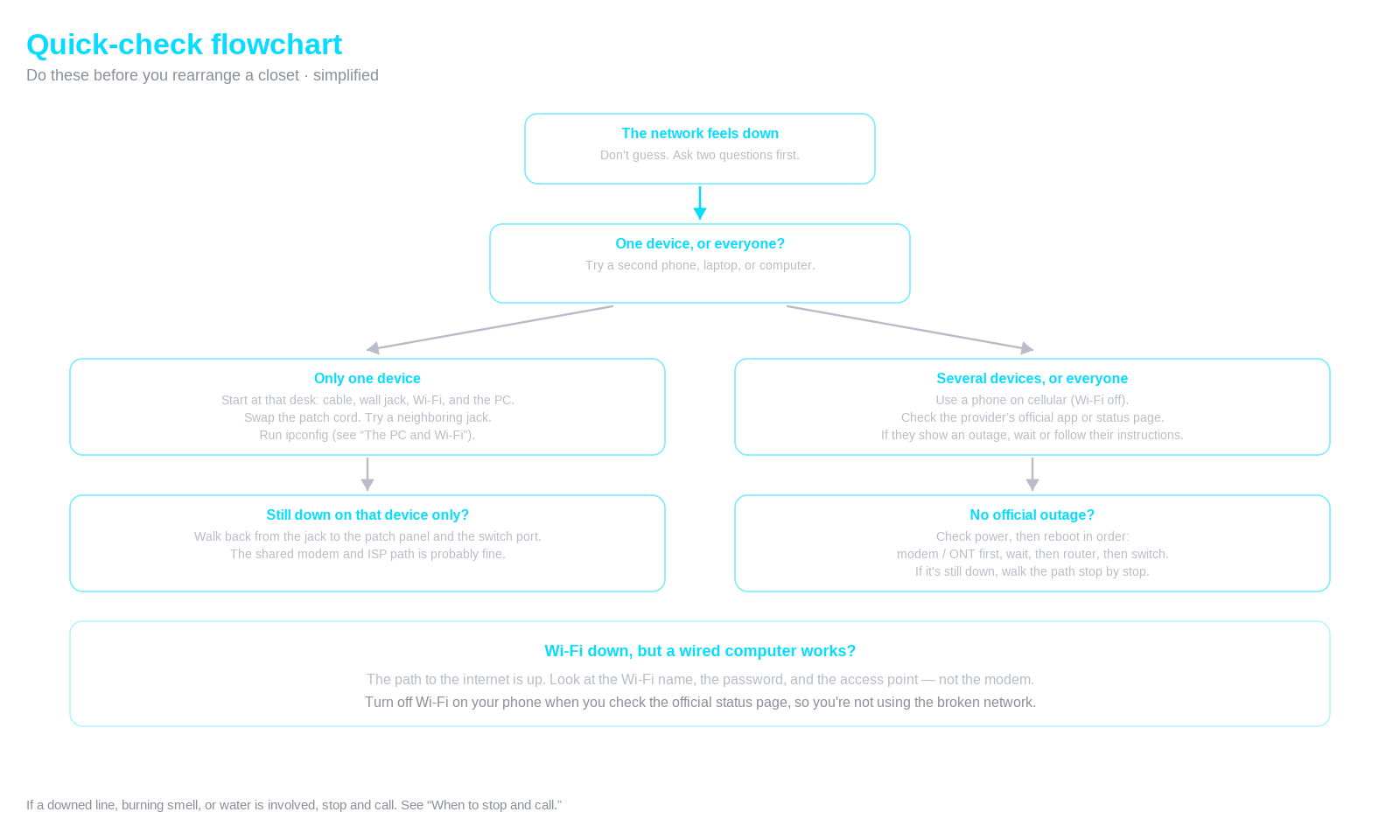
When the network “is down,” the break is somewhere on a path: the internet provider, the box at the side of the building, the modem or ONT, the router or firewall, a switch, the cables in the wall, or the computer itself. Guessing usually wastes time. A few quick checks tell you whether the problem is one device or the whole site, and then you can walk the path until you find the broken stop.
This guide is for a home or a small office. The boxes have different names and sizes, but the path is the same. For a map of each stop, see From the demarc to your desk.
Quick checks
Do these before you unplug anything in a closet or call the provider.
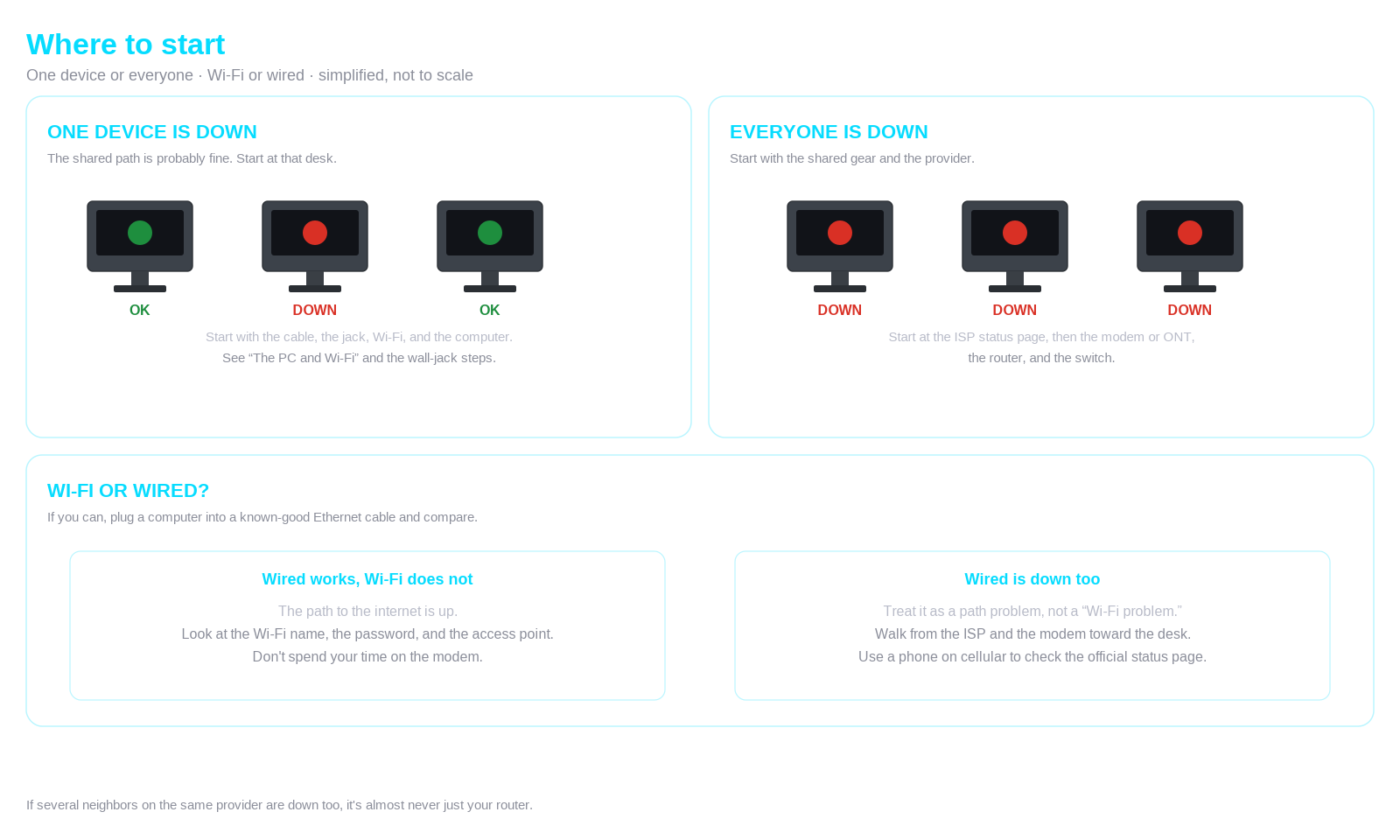
One device, or everyone?
Try a second device. A phone, a laptop, or a computer in another room is enough.
- Only one device is down. The shared path (the ISP, the modem, the router) is probably fine. Start at that device: its Wi-Fi or cable, the wall jack, and the computer itself. Jump to The PC and Wi-Fi and, if it’s a wired desk, The patch panel, wall jack, and patch cable.
- Several devices, or everyone, is down. Start with the shared gear and the provider. Stay on this path from the ISP onward.
- Wi-Fi is down, but a computer with an Ethernet cable still works. The internet path is up. The problem is on the wireless side (the access point, the router’s Wi-Fi, a password, or the device’s Wi-Fi). Don’t spend your time on the modem.
Wi-Fi or wired?
If you can, plug a computer into a known-good Ethernet cable and try that.
- If wired works and Wi-Fi does not, the path to the internet is up. Look at the Wi-Fi network name, the password, and whether the access point or the router’s wireless is on.
- If wired is down too, treat it as a path problem, not a “Wi-Fi problem.”
- On a phone, turn off Wi-Fi and use cellular data for the status-page checks later. You need a path that doesn’t depend on the broken network.
Power and a recent change
- Are the modem or ONT, the router or firewall, and the switch actually on? Check the power strip or UPS, and the wall outlet. A tripped strip or a dead UPS looks exactly like an outage.
- Did someone move a cable, add a device, change a password, or run an update today? Weather, yard work, or construction outside can cut a drop. A change is a clue, not proof.
- Don’t factory-reset an office firewall “to see if it helps.” You’ll lose the setup. See From the demarc to your desk: what not to do.
Reboot in the right order
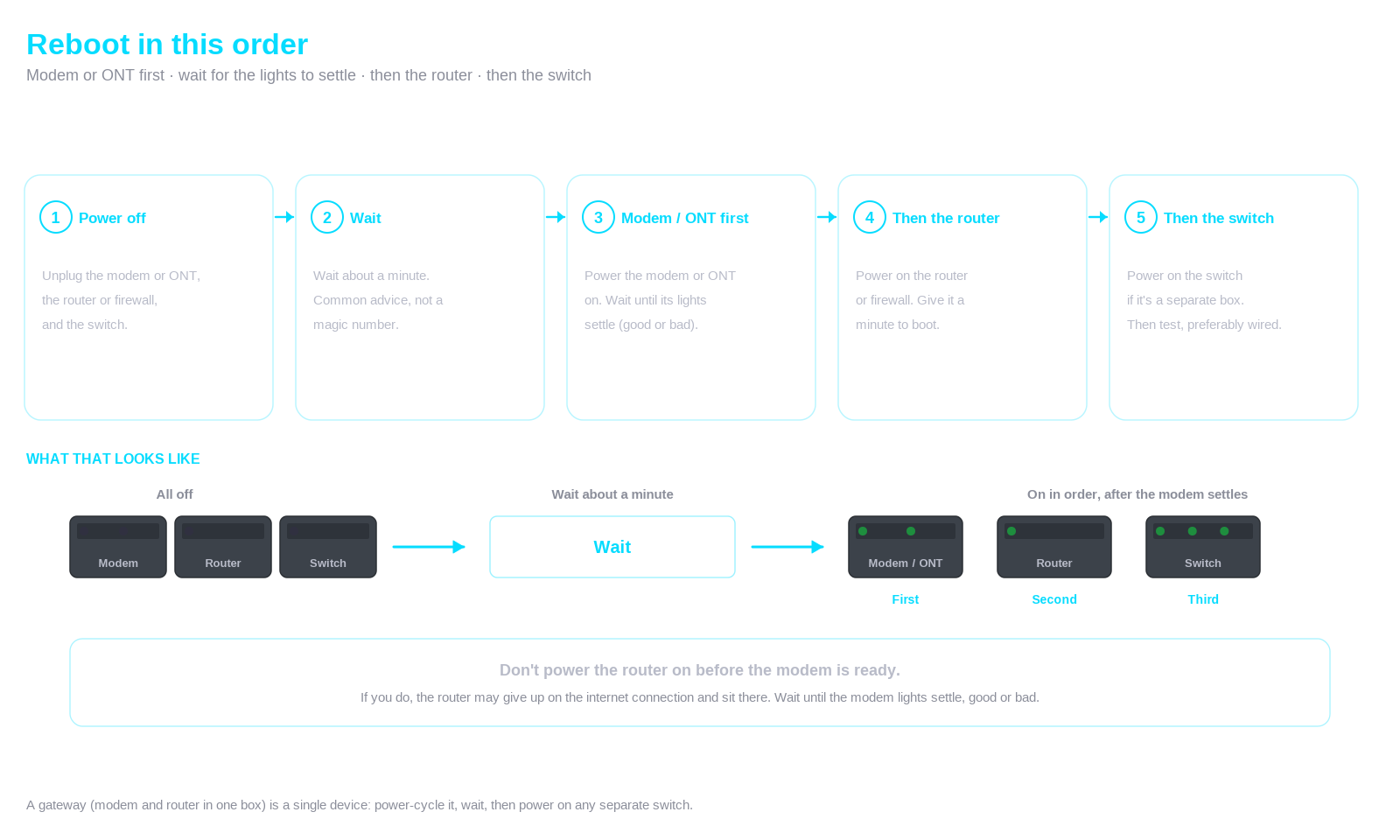
A reboot often clears a stuck modem or router, but the order matters. If you power the router on before the modem is ready, the router may give up on the internet connection and sit there.
- Power off the modem or ONT, the router or firewall, and the switch (unplug them, or use the power button if they have one).
- Wait about a minute. This is common provider advice. It gives the old session time to clear. It is not a magic number; see Not fully verified.
- Power on the modem or ONT first. Wait until its lights settle. “Settle” means they stop their long startup blink and show a steady state, good or bad. That can take a few minutes. Don’t rush this step.
- Power on the router or firewall. Give it a minute to boot.
- Power on the switch, if you have one that’s separate from the router.
Then test again, preferably from a wired computer if you have one.
Walk the path
Work from the street toward the computer if everyone is down. If only one device is down, you can start at that desk and walk back. At each stop you’ll see a link to the matching stage in From the demarc to your desk.
1. The ISP and the demarc
Deep-link: ISP and its service · Demarc / NID
Before you rearrange cables, check whether the provider is down.
Use a phone on cellular data (Wi-Fi off), or a neighbor’s connection, so you’re not relying on the broken path.
- Open your provider’s official app or status page. Some pages only show an outage at your address after you sign in.
- If the provider says there’s an outage in your area, wait it out or follow their instructions. Further reboots won’t fix a cut in the street.
- Third-party “outage maps” can be a hint that other people are posting, but they are not official. Trust the provider’s own page for the account you pay for.
- If several neighbors on the same provider are down too, it’s almost never just your router.
At the building, the demarc (often a network interface device, or NID) is where the provider’s side ends and yours begins. You can look at the box; don’t open the provider’s sealed side. If the drop on the wall or the pole looks cut, hanging, or damaged, stop and call the provider. Don’t touch a downed line.
For network engineers: Get the circuit ID or account off the invoice or the demarc label before you call, and ask whether the official status is for the site address, not a regional banner. A “no light” condition on fiber at the ONT is a provider problem until they say otherwise.
2. The modem or ONT
Deep-link: Modem or ONT
This box turns the provider’s signal into Ethernet. A fiber site has an ONT. A cable site has a cable modem. Many homes have a gateway (modem and Wi-Fi router in one). If it’s a gateway, this stop and the next one are the same box.
Lights vary by model. There is no single color code. A label on the device, a card in the box, or the provider’s help page is the authority. In general:
- A power light should be on if the box has power.
- A downstream, PON, or optical light often has to lock before the others will come up.
- An online, internet, or registered light usually means the box is talking to the provider. A long blink, a red or amber fault light, or a light that stays off when the manual says it should be on, often means it can’t.
- A LAN or Ethernet light speaks to the link toward your router, not to the whole internet.
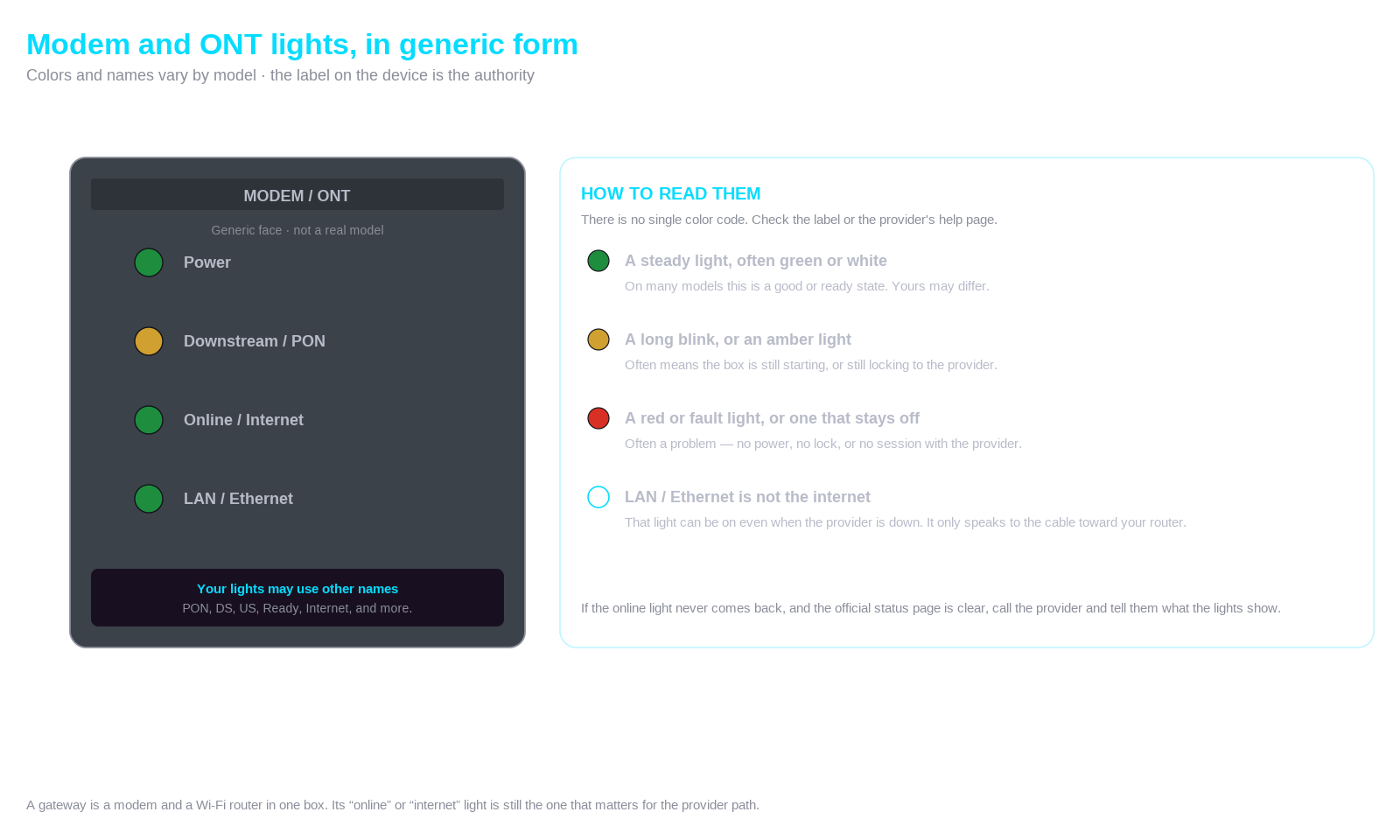
What to try: Confirm the power adapter is seated, the coax is finger-tight (cable), and the fiber cord isn’t bent sharply or unplugged (fiber). Then use the reboot order above. If the online light never comes back, and the official status page is clear, you’re ready to call the provider with what the lights show.
3. The router or firewall
Deep-link: Firewall or router
This box shares the one internet connection with your devices and, in an office, is often the firewall.
- If the modem looks healthy but no device can get online, look here next: power, the WAN (internet) cable from the modem, and the LAN cables out to the switch or to your devices.
- Many routers have a WAN or internet light. Treat it like the modem lights: check the device’s own legend. No WAN link usually means the cable to the modem is loose, in the wrong port, or the modem isn’t actually online.
- Can one device on the router get online, but not others? Then the internet path may be fine, and the problem is on the LAN side (switch, cable, or Wi-Fi).
- Don’t factory-reset an office firewall. If you need a reboot, power-cycle it in the order above.
For network engineers: If you have access, check whether the WAN interface has an address, whether NAT or the default route is up, and whether the WAN counters are incrementing. A reboot is fine; a factory reset is not a troubleshooting step.
4. The switch
Deep-link: The switch
The switch is the box with a row of numbered ports that feeds desks, access points, and phones. Homes often don’t have a separate one; the router’s LAN ports are doing that job.
- Is the switch powered? A silent, dark switch takes down every wired desk at once, and often the Wi-Fi too, if the access points are plugged into it.
- Is there a link light on the port that goes to the problem desk, and on the uplink port back toward the router? No light usually means a cable or a port, not the internet.
- Try a known-good patch cord and a different switch port.
- A loop (both ends of one cable in the same network) can take down a whole small network, especially on an unmanaged switch. If someone was “just plugging things in,” look for a cable that goes from one port to another on the same switch or the same LAN.
If you recently installed or moved the switch, Build a network rack and the later Install a switch guide cover the mounting and power side. For this outage, you only need power, link lights, and the uplink.
5. The patch panel, wall jack, and patch cable
Deep-link: Patch panel · Horizontal cabling and wall jack · Patch cable
These stops matter when one desk is down and the rest of the site is fine.
- Swap the short patch cable from the wall to the computer for a known-good one. Cords fail more often than the cable in the wall. A broken clip or a cord crushed by a chair is a typical cause. A phone cord (smaller plug) in an Ethernet jack will not work.
- At the closet, confirm the matching patch panel port still has a short cord into the switch, and that the switch port has a link light. A cord pulled loose in the rack looks like a dead jack in the room. See How to punch down a patch panel and a keystone wall jack if you need to re-terminate or test the run.
- Try the computer on a neighboring jack that you know works. If it comes up there, the problem is the first jack or the cable in the wall, not the PC.
6. The PC and Wi-Fi
Deep-link: The PC
Start here when only one device is down, or when the rest of the path already looks healthy.
- Link light: On a wired Ethernet port, a small light usually comes on when the cable is good. No light means the cable, the jack, or the adapter, not a website.
- Wi-Fi and Ethernet both on. The computer may be holding on to a bad Wi-Fi network. Turn one off and test the other.
- VPN apps and “security” filters sometimes block everything after a failed reconnect. Disconnect the VPN and try again.
- A dock or USB Ethernet adapter may need a reseat or a reboot of the computer.
A simple address check on Windows: Open Command Prompt and type ipconfig. Find your Ethernet or Wi-Fi adapter in the list.
- A normal IPv4 address and a default gateway mean the computer got a spot on the local network. The problem, if there still is one, is often upstream (DNS, the router, or the ISP).
- An address that starts with 169.254 means the computer didn’t get an address from the router. Look back up the path: cable, jack, panel, switch, router.
- “Media disconnected” means the computer doesn’t see a link. Check the cord and the jack first.
On a Mac, the same facts live in System Settings > Network. In Terminal, ifconfig shows the adapters. On a phone, the Wi-Fi detail screen shows the IP address.
A simple reachability check: Still in Command Prompt (or Terminal), type ping and then the default gateway address from ipconfig. You should see replies, or a timeout.
- If the gateway replies, the local path to the router is working. Next you can try
ping 1.1.1.1(a public Cloudflare address on the internet). Replies suggest the path out is working too. If a website still won’t load, try another site, or check DNS (the computer may be online but unable to turn a name into an address). - If the gateway never replies, the problem is on this side of the router: the PC, the cable, the jack, or the router itself.
- Ping is not a perfect test. Some networks and some firewalls block ping (ICMP). If a website loads, you’re online, even when ping fails. Don’t treat a blocked ping as proof the internet is down.
What to tell your ISP or IT
Write this down before you call. It saves a repeat of the same questions.
- Your account name or number and the service address.
- When it started, and whether it’s still down, flapping, or only slow.
- Who is affected: one device, one room, or everyone. Whether a wired test was different from Wi-Fi.
- What the lights show on the modem or ONT (which lights, steady or blinking, and the color). Say you checked the label if you did.
- What you already tried: the reboot, in this order, and any cables you swapped. That keeps them from asking you to do it again without a reason.
- Anything recent: weather, construction, a move, a new device, a power blink.
- For an office circuit, the circuit ID if you have it (often on a label at the demarc or on an invoice).
A short script you can read:
Our internet has been down since [time] at [address]. I checked your official status page from a phone on cellular and didn’t see an outage for this address. The modem (or ONT) power light is on, and the [online / other] light is [off / blinking / color]. I already power-cycled in order: modem first, waited for the lights to settle, then the router, then the switch. A wired computer still can’t get on. Can you check the connection to this address?
Cut or change any sentence that doesn’t apply. If their status page does show an outage, you can skip the deeper questions and ask for an estimate instead.
When to stop and call
Stop troubleshooting and get help if any of these are true:
- A drop, fiber, or coax on the pole or the wall is cut, hanging, or sparking. Stay away from a downed line. Call the provider, and call the power company or emergency services if a line is on a person, a car, or a wet surface.
- You smell burning, see scorch marks, or a breaker or power strip keeps tripping. Unplug what you can do safely, and treat it as an electrical problem, not a network setting.
- Water is in a network box, a rack, or an outlet.
- The provider’s sealed side of the demarc is the box you would have to open. Don’t. That’s their side.
- You’ve walked the path, the official status is clear, the modem never comes online, and you’re repeating the same reboot. It’s time to call, with the notes above.
A slow-but-working connection is a different problem than a down one. This guide doesn’t try to diagnose speed.
Still stuck?
If you’ve walked the path and still can’t find the broken stop, message me with what you see at each step (who is affected, the modem lights, and what ipconfig shows). Chat with Technical Terrence
Last updated: November 22, 2026
Sources checked
- From the demarc to your desk — stage anchors
#stage-ispthrough#stage-pc, the common reboot order, 169.254, andipconfig - How to punch down a patch panel and a keystone wall jack
- Build a network rack
- Microsoft: ipconfig (displays TCP/IP network configuration)
- RFC 3927: 169.254.0.0/16 link-local (APIPA) addresses, used when IPv4 configuration fails
Provider status pages, modem light legends, and exact reboot wait times are model- and vendor-specific. The guide sends readers to the official app or page, and to the label on the device, instead of quoting one vendor as a rule.
Not fully verified
- “Wait about a minute” before powering the modem back on. This matches the demarc guide and is common provider advice. I didn’t confirm it against a specific provider’s current help page, and the “until the lights settle” wait after that can be several minutes, depending on the box.
- Status-page behavior. Some official pages show a local outage only after you sign in. That’s a common pattern, not something I verified for every provider.
- Light names and colors. Power / downstream / online / LAN is a generic sketch. Real labels include PON, DS, US, Internet, Ready, and others. Colors are not standard. Always check the device.
- Ping as a test. The gateway-then-1.1.1.1 sequence is a common field check. It can mislead when ICMP is blocked, when only DNS is broken, or when IPv6 is in use and IPv4 is not. The guide says ping is not a perfect test.
- “Several neighbors down means it isn’t your router.” This is a practical rule of thumb from the hub, not a guarantee.
- Switch loops taking down a small network. This happens on many unmanaged switches. Managed switches with spanning tree often survive it. Don’t treat every unmanaged switch as certain to fail the same way.